(Updated) Microsoft Teams Rooms: Room health signals in Teams Rooms on Windows
AI summary
Room health alert banners activated in Teams Rooms on Windows
Room-Health-Warnbannern in Teams Rooms on Windows aktiviert
Rollout dates
- Standard release (GA): –
Extracted from the announcement text; the Microsoft text is authoritative.
Microsoft announcement
Updated July 28, 2026: We have updated the timeline. Thank you for your patience.
[Introduction]
To support a seamless hybrid meeting experience, Teams Rooms on Windows will now display alert banners when critical or important issues impact room functionality. These alerts appear on both the front-of-room display and the console, helping users quickly identify and respond to problems that may disrupt meetings. This feature will be available on Teams Rooms on Windows devices with Pro licenses.
This message is associated with Microsoft 365 Roadmap ID 508521.
[When this will happen]
General Availability:
- Worldwide: Rollout begins in mid-May 2026 (previously early April) and completes by late May 2026 (previously mid-April).
- GCC: Rollout begins in mid-May 2026 (previously early April) and completes by late May 2026 (previously mid-April).
- GCC High: Rollout begins and completes in mid-June 2026 (previously late April).
- DoD: Rollout begins and completes in early August 2026 (previously mid-July).
[How this affects your organization]
Who is affected: Organizations using Teams Rooms on Windows with Teams Rooms Pro licenses across commercial, GCC, GCC High, and DoD environments.
What will happen:
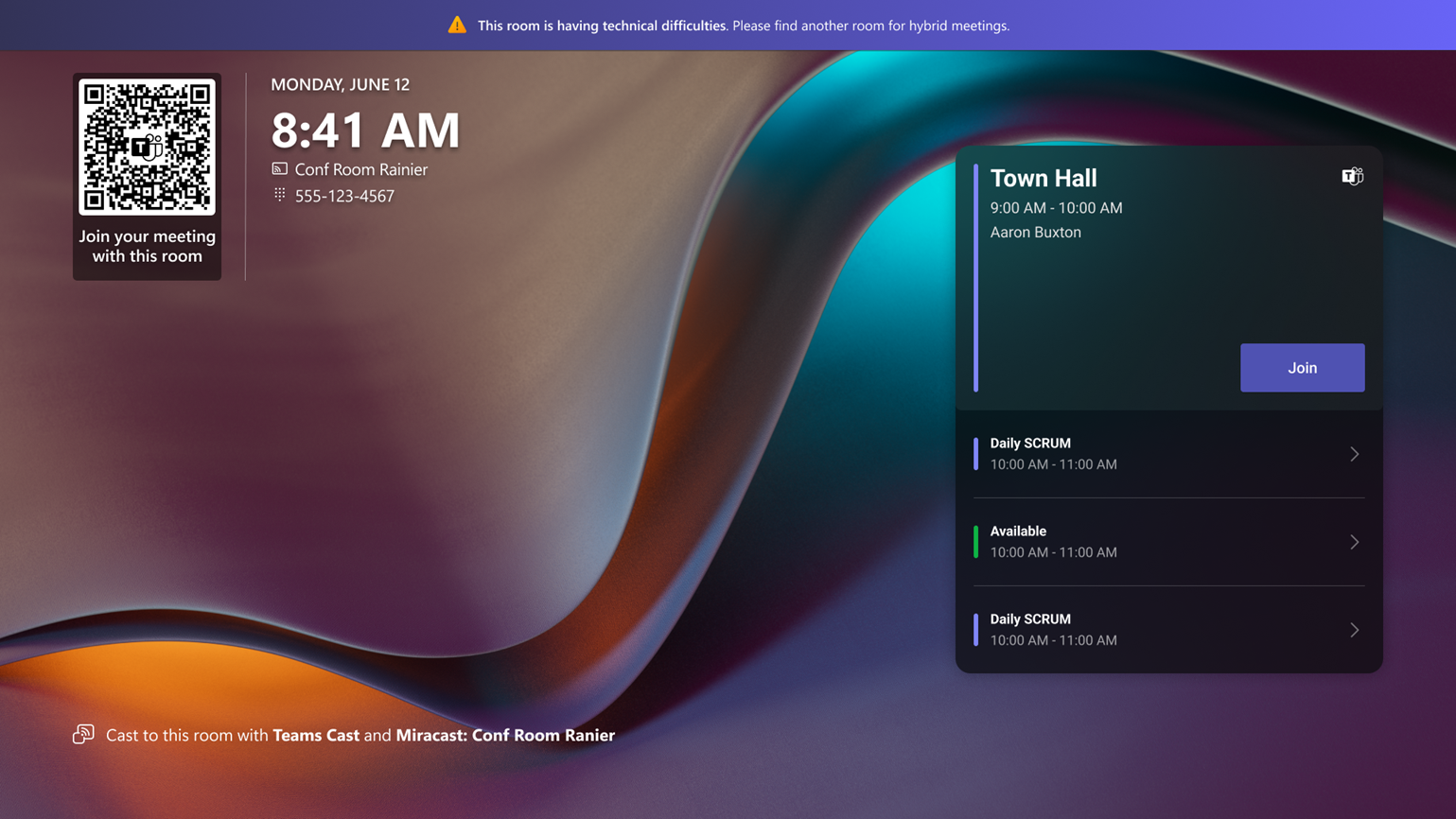
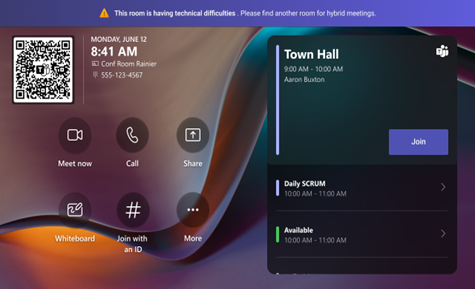
- Users will see alert banners on the front-of-room display and console when critical or important room health signals are detected.
- These alerts are based on existing signals defined in Health signals | Microsoft Teams | Microsoft Learn.
- The feature is enabled by default for supported versions of Teams Rooms on Windows with a Teams Rooms Pro license.
- This feature requires Microsoft Teams Rooms on Windows app version 5.5 or newer.
- If an issue is detected, users will be prompted to find another nearby room to maintain meeting continuity.
Screenshot 1: Front-of-room display view:
Screenshot 2: Console view:
[What you can do to prepare]
- Monitor the Pro Management portal regularly to anticipate potential issues.
- Respond promptly to alerts by verifying and resolving root causes.
- Communicate the new banner interface to users and update training materials as needed.
- Review the health signal documentation: Health signals | Microsoft Teams | Microsoft Learn.
[Compliance considerations]
No compliance considerations identified, review as appropriate for your organization.
Change history
- 2026-07-28 · Updated · BodyContent
- 2026-07-28 · Updated · Details
- 2026-07-14 · Created · All