Microsoft Teams: Action required to connect Teams Android devices to Teams Rooms Pro Management portal
AI summary
Android devices now require PMP IoT Hub connection
Android-Geräte benötigen jetzt IoT Hub-Verbindung zu PMP
Rollout dates
- Standard release (GA): –
Extracted from the announcement text; the Microsoft text is authoritative.
Impact
ChangeCockpit assessment (admin, user and compliance impact).
Microsoft announcement
[What and why]
We identified that one or more Microsoft Teams Android devices in your organization are not connected to the Teams Rooms Pro Management portal (PMP) through IoT Hub. Devices that are not connected through IoT Hub cannot be managed through the Teams Rooms Pro Management portal.
This communication is related to the retirement of Teams Android device management in the Teams admin center (TAC). After this retirement, PMP will be the supported management experience for Teams Android devices. We previously announced this retirement in MC1227622.
This message is associated with Roadmap ID 555235.
[Rollout schedule]
- Worldwide: Beginning in early August 2026 and expected to complete by late September 2026
[Impact on your organization]
Who is affected
- Organizations with Microsoft Teams Android devices that are not connected to the Teams Rooms Pro Management portal through IoT Hub
Platforms and services
- Microsoft Teams
- Teams admin center
- Teams Rooms Pro Management portal
- Android-based Teams devices
What will happen
- Teams Android device management in the Teams admin center will be retired after August 2026.
- Android devices that are not connected to PMP through IoT Hub will not be manageable in the Teams Rooms Pro Management portal.
- Organizations that do not complete the required migration steps may lose management capabilities for affected Android devices.
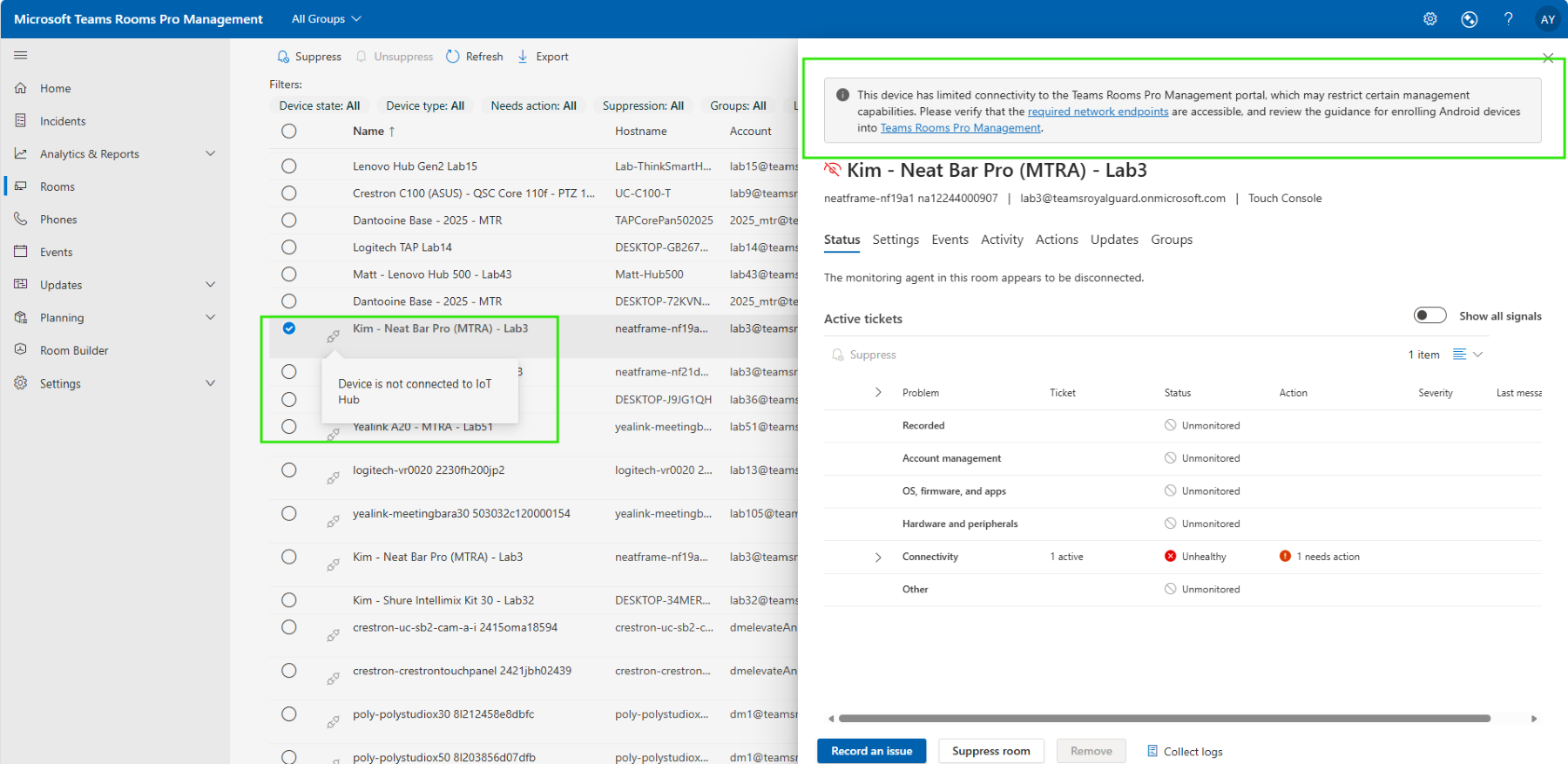
Screenshot - PMP Rooms and Phones view with examples of connected versus disconnected IoT Hub status indicators:
[Action required and recommendations]
Required by: August 31, 2026.
Complete the following steps as soon as possible:
- Make sure your Teams devices are signed-in.
- Allowlist the required network URLs and endpoints so devices can connect to the Teams Rooms Pro Management portal.
- Sign in to the Teams Rooms Pro Management portal and verify that your Android devices are connected through IoT Hub and can be managed. Check the Rooms and Phones views for device connection status.
- Review any devices that are not connected and follow the migration guidance to establish PMP connectivity.
- If devices remain unavailable in PMP after completing the migration steps, review the migration guidance and contact Microsoft Support if additional assistance is needed.
Learn more
[Compliance considerations]
No compliance considerations identified. Review as appropriate for your organization.
Change history
- 2026-08-04 · Created · All